Prepping Song Files
Audacity
-
Open Audacity and drag in the song you are going to chart.
-
We will generate 4 seconds of silence at the start of the song. This is to allow players some time to preapare and not isntantly have to start playing.
- Silence option is located at "Generate>Silence..."
-
Well use TuneBat to find out the bpm of the song. Just upload the original song file (not the one being edited in audaticy) and it will provide you the BPM and the key of the song.
-
Back to Audacity, select the silence track you made and go to Change Tempo, located at "Effect> Pitch and Tempo> Change Tempo..."
- When the menu opens, change the Beats per minute to whatever the BPM of your song is.
- You are editing the "to" value
-
Highlight/Select the empty space in front of the Song Track and then generate silence in there.
- No changes to the length of the silence, use the number it generates. That is the length of the selection made
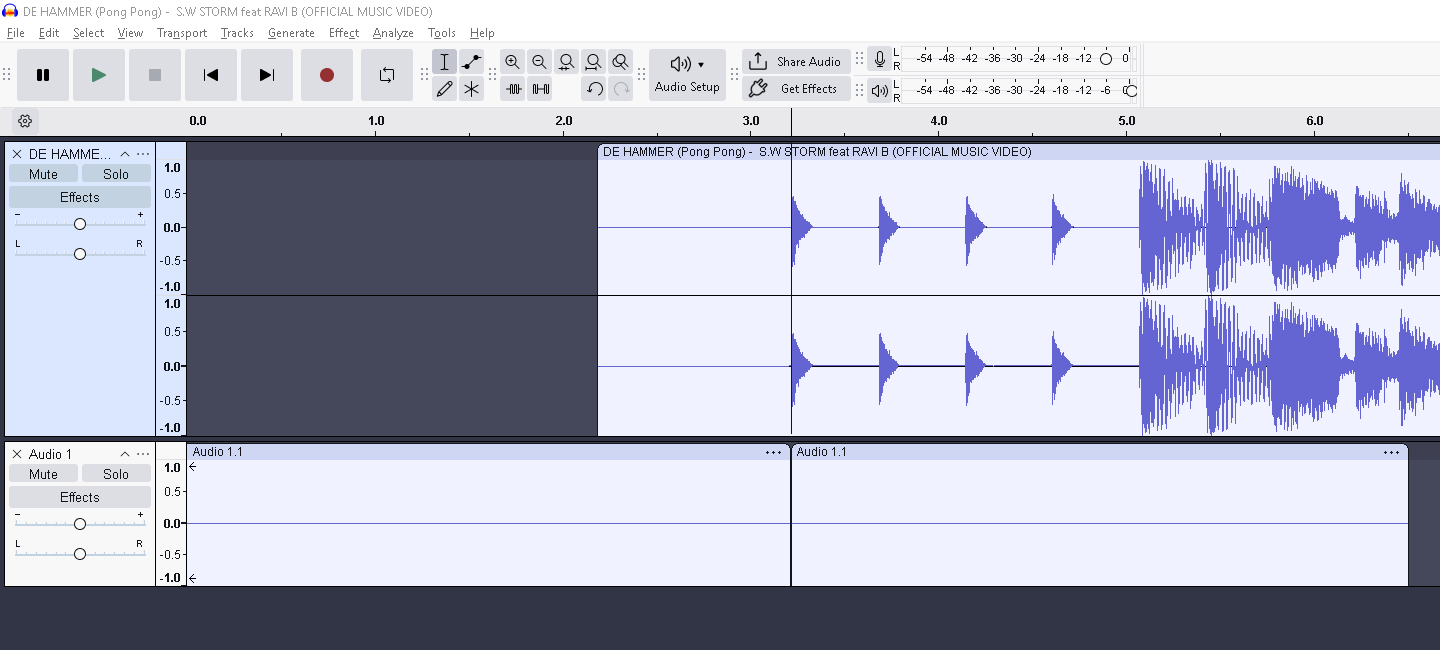
- Delete the Silence track that was made and export the song as "Original.ogg" ("ctrl+shift+e" is export)
DemucsGUI
- Now time to split the song file into its different parts, Guitar, Drums, Bass, and Vocals.
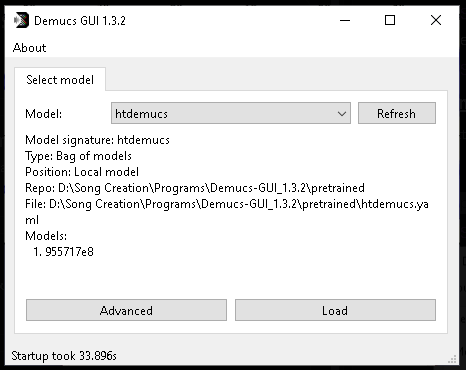
- Open DemucsGUI and select the "htdemucs" Model and click on Load
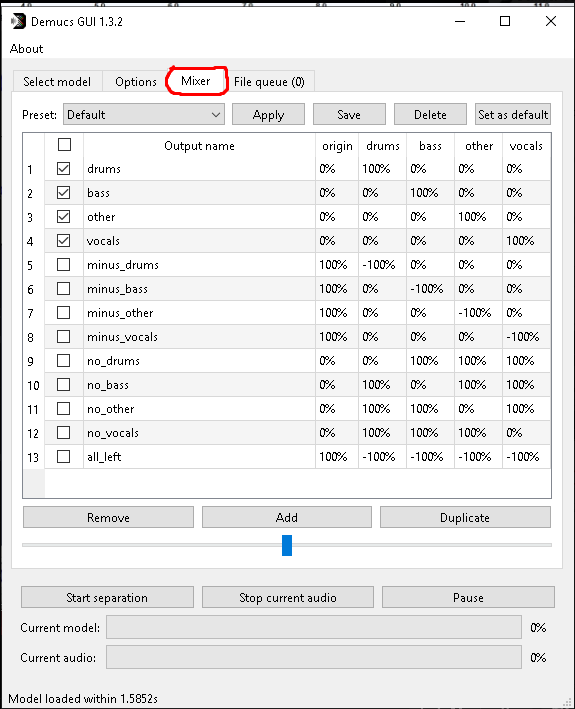
- Go to the "Mixer" tab and make sure drums, bass, other, and vocals are the only thing selected
- For Chutney songs bass is not needed
- Go to the "File Queue" tab and add in the "original.ogg" song file that was just made in Audacity then click on "Start Separation"
Audacity
- DemucsGUI splits the files into .flac format, using Audacity convert the .flac to .ogg to save space.
Import the seperated audio files into audacity and export each one as a .ogg file.
- other.flac = guitar.ogg
- bass.flac = bass.ogg
- drums.flac = drums_original.ogg (this will be split further later)
- vocals.flac = vocals.ogg
- to export individually, select the track then export and make sure "current selection" is selected
DemucsGUI
We will be splitting the drum.ogg into multiple drum stems 1, 2, 3, and 4
- Bombo = drums_1
- Platillos = drums_4
- Redoblante = drums_2
- Toms = drums_3
-
Open DemucsGUI and select and then load the "modelo_final" modelo_final
-
In the "Mixer" tab make sure bombo, redoblante, platillos, and toms are the only ones selected.
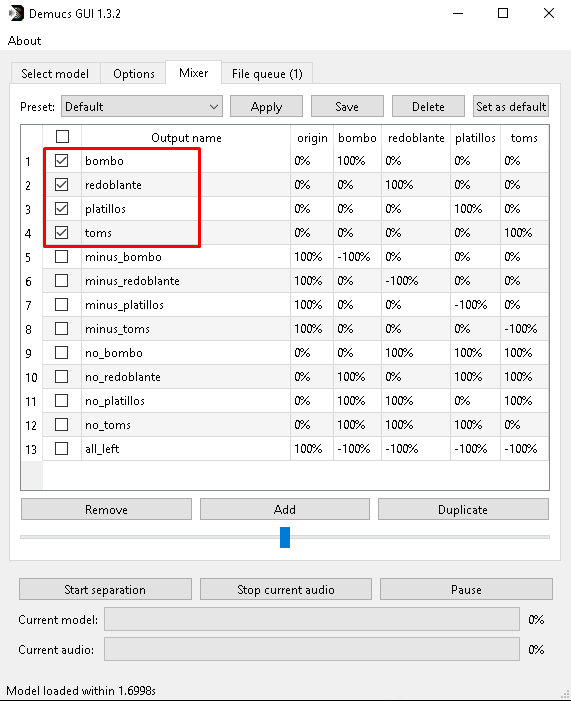
- In the "File Queue" tab click add files and import the "drums_original.ogg" then click "Start Separation"
AUDACITY
DemucsGUI splits the files into .flac format, using Audacity we will convert the .flac to .ogg to save space.
-
Import the seperated audio files into audacity and export each one as a .ogg file.
- bombo.flac = drums_1.ogg
- redoblante.flac = drums_2.ogg
- toms.flac = drums_3.ogg
- platillos.flac = drums_4.ogg
to export individually, select the track then export and make sure "current selection" is selected
-
We can now delete the "seperated" folder and "original.ogg". They are no longer needed
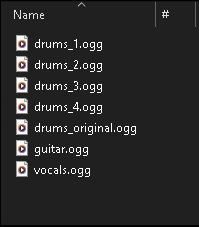
- drums_original.ogg is kept becuase its used in Moonscraper Chart Editor to create the Tempo Map
FOLDER SHOULD LOOK LIKE THIS AFTER EVERTHING